
Connect HubSpot and Stripe to Junction
Find disagreements between your customer agreements and billing, inspect the evidence, and approve supported corrections. Junction runs in its own web app.
Before you start
- A Junction workspace and an owner or administrator account to connect systems and approve changes.
- A HubSpot account with contacts and deals. Use a Super Admin or an account with Marketplace Access and the permissions needed to authorize the requested CRM scopes.
- A Stripe account containing the customers and billing records you want to compare, with permission to install apps.
- Consistent customer identifiers or email addresses across both systems. Unmatched or incomplete records may need review before Junction can propose a correction.
HubSpot CRM contacts and deals are the supported CRM objects; no HubSpot workflow or custom object is required. Stripe is required for the comparison. Scanning and evidence review are free. Executing supported corrections requires the paid Fix it plan. See current pricing.
Connect your systems
- Sign in to Junction using your existing email/password, Google account, or company sign-in method. Open your own workspace.
- In onboarding, choose Connect HubSpot. You can also start from Systems. Select the correct HubSpot account, review the requested permissions, and connect.
- Return to the same Junction workspace. HubSpot should show Connected, and onboarding should offer Connect Stripe next. A successful redirect alone does not prove the connection is saved; check its status.
- If Stripe is available in your workspace, choose Connect Stripe, select the intended Stripe account, and approve Junction. After returning, confirm that both systems show Connected. Contact Junction support if the connection is not available.
- Choose Run the free scan. If you leave onboarding early, the Inbox setup checklist shows the missing connection and the next step.
What Junction can access
| HubSpot permission | Purpose |
|---|---|
| Contacts: read | Read identity, email, and lifecycle stage for customer matching and evidence. |
| Deals: read | Read agreement amounts, stages, dates, and contact associations for billing comparisons. |
| Contacts: write | Apply a supported lifecycle-stage change only after exact approval. |
| OAuth | Authorize the connection; this base scope grants no CRM data access by itself. |
Read and contact-write access are requested when connecting. HubSpot describes its write permission broadly; Junction’s supported CRM correction changes a contact lifecycle stage. Junction does not create, delete, or update deals. Scanning never writes to HubSpot or Stripe. Connector tokens are encrypted at rest. See our Privacy Policy for data handling and retention.
Stripe access covers reading customer and billing evidence and the specific invoice or subscription corrections supported by Junction. Review the current Stripe consent screen before connecting. Junction does not automatically copy Stripe billing objects into HubSpot.
Run a scan and inspect the evidence
After both systems are connected, run the initial scan or choose Sync & triage from Inbox. Open a finding to see the HubSpot facts, Stripe facts, amount involved, and suggested next step. Examples include a customer still marked active after cancellation, a closed-won deal without an invoice, or an upgrade billed at its old price.
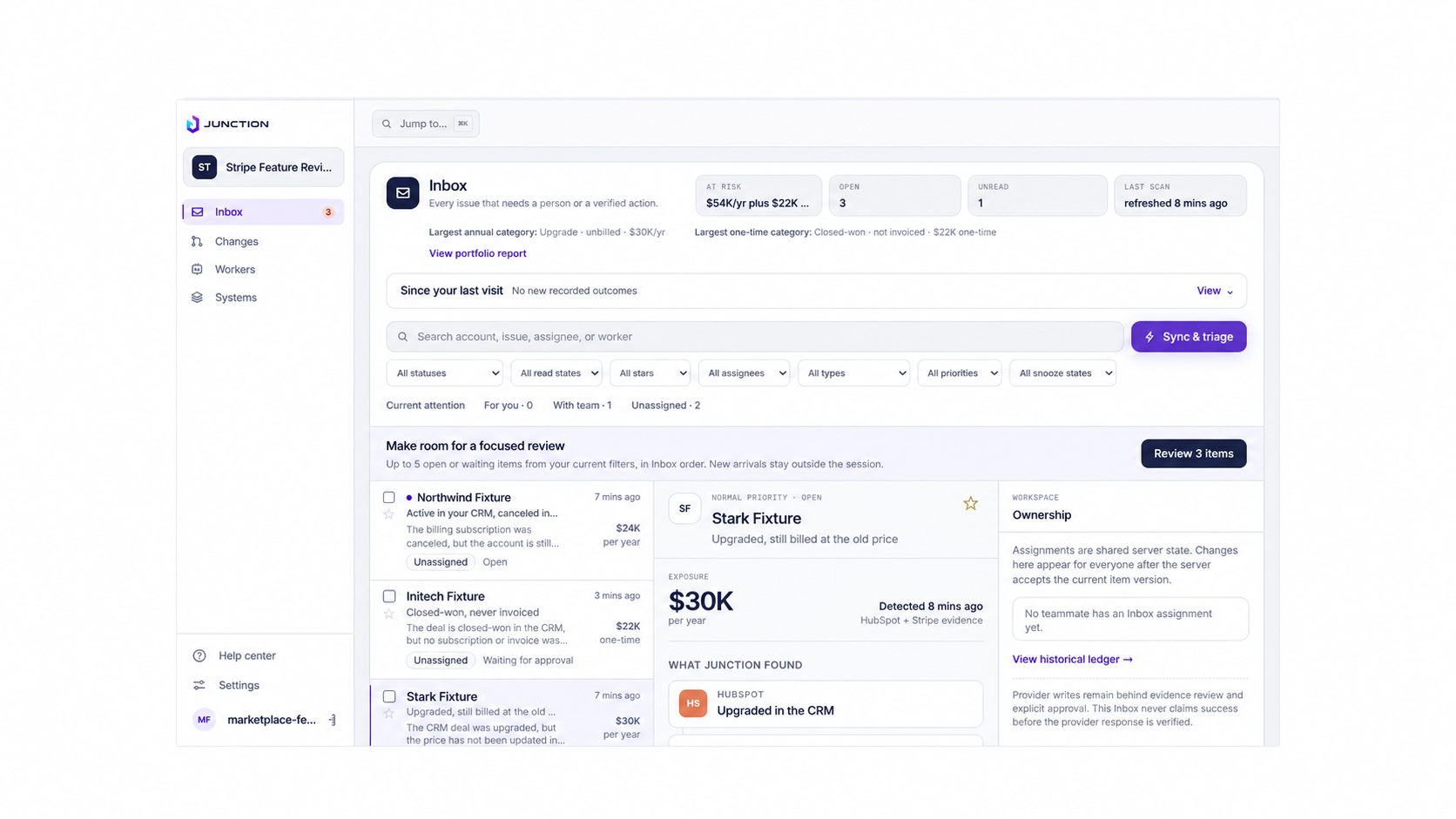
A scan can return no findings. Check account matching and source data if a record you expected is missing. A displayed amount is exposure identified from the records, not proof that money has been recovered.
Review and approve a correction
- Open a finding and choose Review verified action. Inspect the exact target, before and after values, evidence, and verification conditions.
- Close the proposal to leave provider records unchanged. To proceed, an authorized owner or administrator must approve that specific action. An agent policy also requires exact approval for supported provider writes.
- Follow the queued action status, or choose Write it now if offered. Junction checks current evidence before writing and rereads the provider afterward.
- Inspect the outcome receipt and change history. A prepared draft invoice remains unsent and unpaid. A verification mismatch or a pending outcome requires review; it does not mean the revenue issue is resolved.
Only use a dedicated synthetic workspace for test corrections. Corrections in your production workspace can change real provider records. Optional follow-through email is a separate choice.
Disconnect or uninstall
Open Settings in Junction, find the connection, choose Disconnect, and confirm the workspace name. Follow the result shown there. Disconnecting does not undo prior approved changes or delete your HubSpot contacts and deals. Historical findings and receipts are handled under the Privacy Policy.
To remove the app from HubSpot, open HubSpot’s Settings → Integrations → Connected Apps, select Junction, and uninstall it. For Stripe, open Apps → Installed and uninstall Junction. Removing local Stripe credentials in Junction is separate from uninstalling the Stripe App.
Reconnect from Junction’s onboarding or Systems page, select the intended provider account, and grant access again. Verify Connected after returning. Do not reuse an old authorization URL.
Troubleshooting and support
- Canceled consent: return to Junction and try Connect again. Cancellation should leave a recoverable message and the connection incomplete.
- Connection missing after redirect: check Systems, reload the connection status, and retry from the same workspace. If one system is connected, continue with the missing system.
- Permission or scope error: use an eligible HubSpot administrator or ask your account administrator to grant access. If HubSpot requests reauthorization after an app update, reconnect from Junction.
- Wrong workspace: use your original sign-in method and open the workspace listed for your account. Signing in at another company’s address does not grant access to it.
- Stripe connection unavailable: contact us for help or a demo.
- No findings or unexpected data: confirm the selected HubSpot and Stripe accounts, matching identifiers, and recent source records, then run Sync & triage.
Email hello@getjunction.io for support in English. Include your workspace address, the step that failed, approximate time, and the visible error. Do not send passwords, API keys, or authorization tokens. You can also book a demo.